Modify Images
The  Modify Images tool gives you iterative control over your creations—enabling you to transform existing images through precise text instructions and visual references.
1. Quick Modification
Modify a single image by describing the specific changes you want to see. The engine analyzes your current image and applies your text-based edits while maintaining structural consistency.
Modify
@1
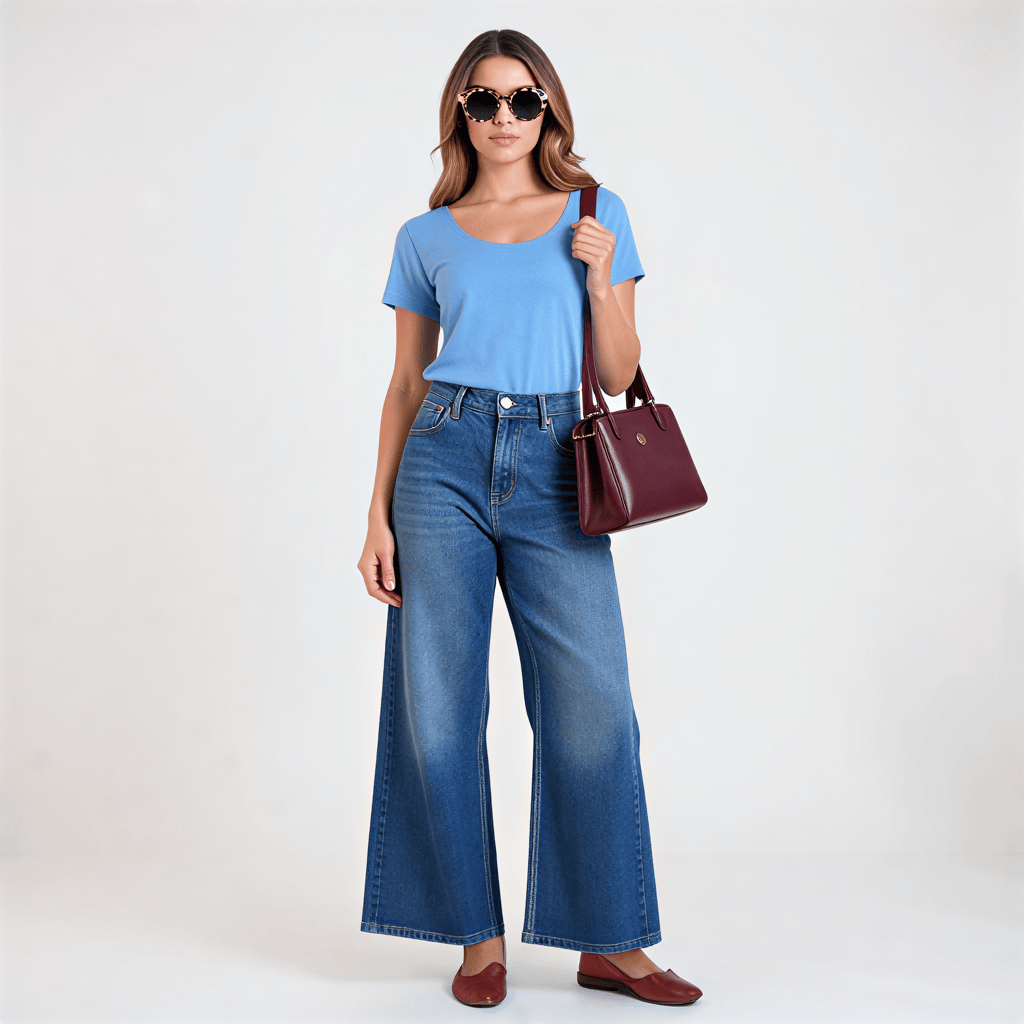
- Example: "Change the t-shirt from blue to vibrant yellow"
- Result: A new image is generated with the requested change, preserving the character's pose and environment.
2. Infinite Context with @Mentions
Unlock true creative control by referencing other images on your canvas. Simply click any image to include it as a reference (@1, @2, etc.). By using these @mentions, you can guide the AI to borrow styles, objects, or compositions from multiple sources simultaneously.
Modify
@1@2@3
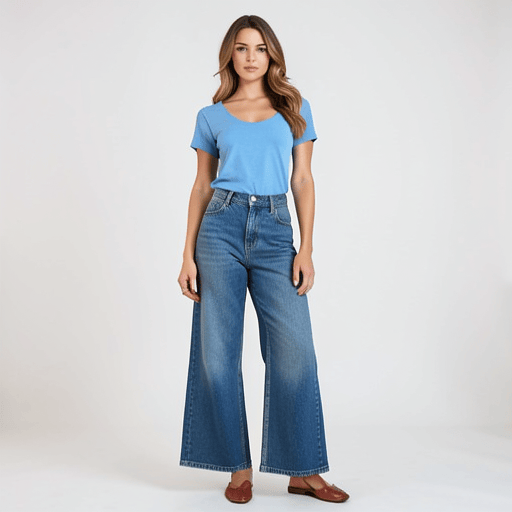
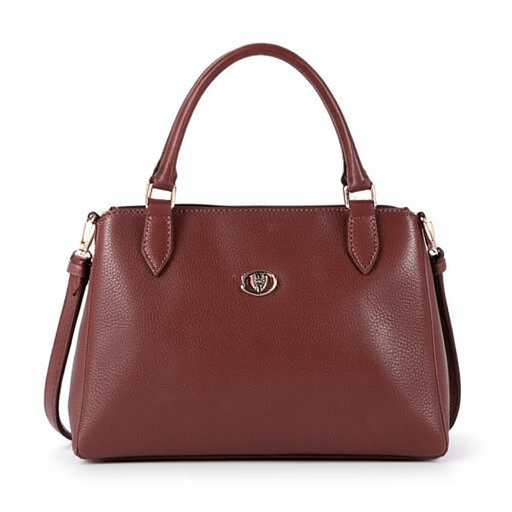
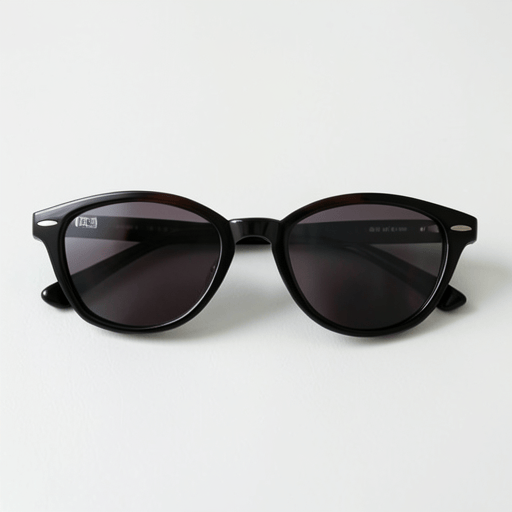
- Example: "Add the sunglass from @3 and handbag from @2 to the character in @1"
- Result: A new image that seamlessly integrates elements from all referenced images, ensuring high-fidelity character and style consistency.
3. Intelligent Toolbar
The bottom of the prompt input contains AI-powered assistants to streamline your engineering:
 Smart Suggest: Professional advisor for creative or corrective actions. It analyzes both your visual context and text instructions—offering aesthetic refinements for single images or style-blending for multi-image modifications.
 Enhance: Expands your simple ideas into detailed descriptions.
 Translate: Instantly converts your prompt into optimized English.
 Describe: Generates a text description of your current selection.
 Templates: Quick access to curated artistic styles and presets.
 History: Re-apply previous prompts with a single click.