The Prompt Editor
The Prompt Editor is your professional command center for AI generation. Mastering these tools allows you to go beyond simple text and precisely guide the AI to match your creative vision.
1024x1024
1. Generation Settings
Model & LoRA Selection
Select which  Base Model you want to use for generation.
Add
Base Model you want to use for generation.
Add  LoRAs for specific styles or character subjects.
Seed
The  Seed ensures reproducibility.
 Shuffle: Generate a random seed and locks with it for following generations.
 Increment: Increment the seed by 1 for subtle iterative variations.
 Random: Generate a random seed for every generation.
Steps
 Steps defines the refinement iterations. Different models are trained and optimized at different steps.
Z-Image Turbo is optimized for 8 steps, while Flux.2 [Klein] is optimized for 4 steps. Higher steps do not necessarily mean better quality.
2. Presets
Use  Presets to instantly jump between common creative configurations.
You can start with a smaller size or fewer steps for fast iteration, and switch to high-quality presets for final renders.
Presets to instantly jump between common creative configurations.
You can start with a smaller size or fewer steps for fast iteration, and switch to high-quality presets for final renders.
Lightning PreviewZ-Image•512x512•4 stepsHigh-Fidelity RenderZ-Image•1024x1024•8 stepsImage EditFlux.2 Klein 4B•1024x1024•4 steps
3. Guided Generations
Remix (img2img)
The Remix engine allows you to use an existing image as a structural blueprint. This enables you to maintain composition while transforming the aesthetic via prompt.
Remix ImageModify Image
Control the Reference
- Precision Cropping: Pan and zoom the reference image to specify exactly which part of the source guides the generation.
- Image Influence (0.0 - 1.0): Determines how much the AI respects the original structure. Lower values allow for more creative re-imagining, while higher values ensure structural loyalty.
Remix (Img2Img)
Regenerate an image with text prompt.
100% · 1024×1024Image Influence0.5
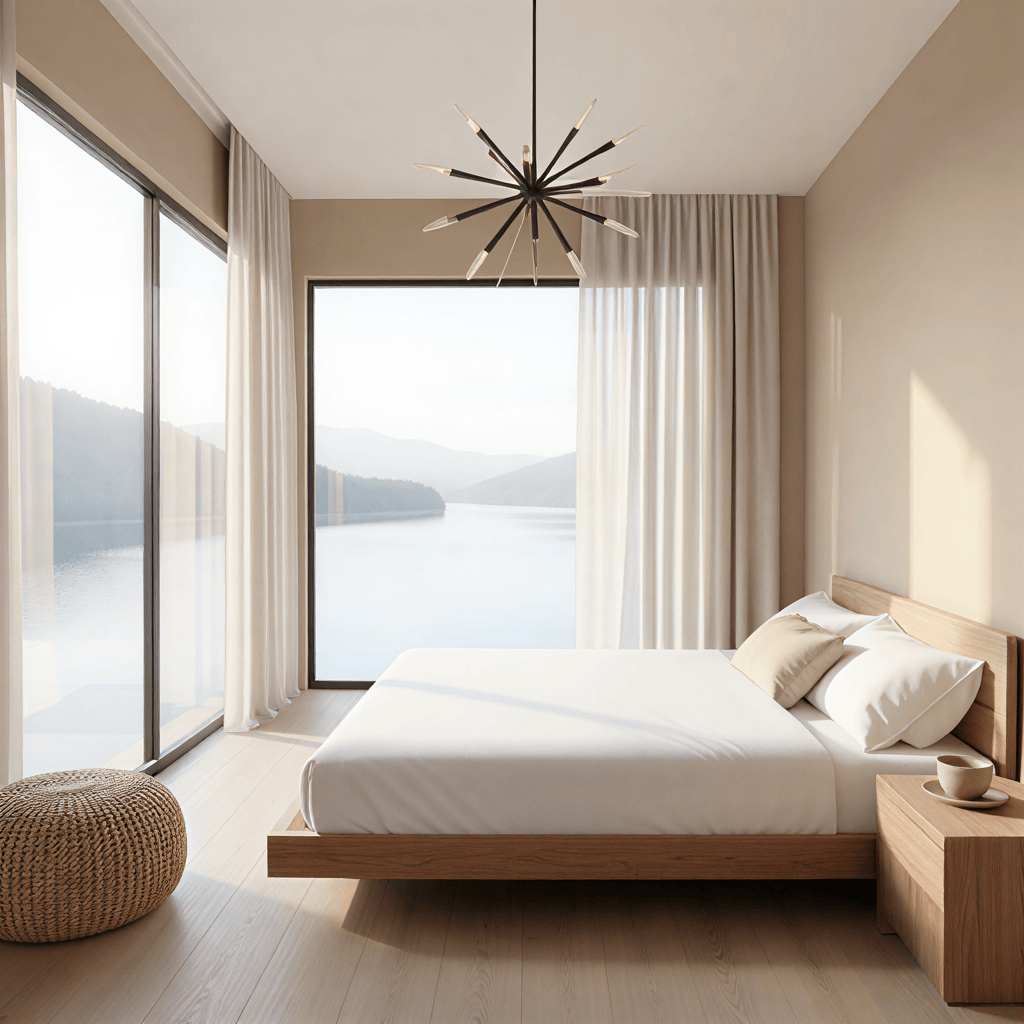
Modify Images
Exclusive to Flux.2 [Klein], this mode supports advanced instructions for selective modifications, allowing you to bridge elements from multiple sources seamlessly.
Remix ImageModify Image
Power Examples:
When using multiple images, refer to them as "image 1", "image 2", etc., based on their slot position:
- Object Swapping: "Change the t-shirt from blue to vibrant yellow."
- Style Injection: "Apply the architectural style of image 1 to the landscape in image 2."
- Subject Composition: "Add the character from image 1 into the rainy street scene of image 2."
4. Enhance Your Prompts
Prompt Templates
Quickly apply  Prompt Templates to inject professional lighting, composition, and artistic aesthetics into your work.
AI Prompt Enhancer
 Prompt Enhancer leverages local intelligence to expand on your initial ideas, transforming simple keywords into rich, detailed descriptions for better model performance.
To learn more about the Enhancer and managing your creative tools, head over to the Prompt Enhancer & Library tutorial.