Variations
The  Variations tool lets you evolve existing images by balancing abstract style and specific text instructions.
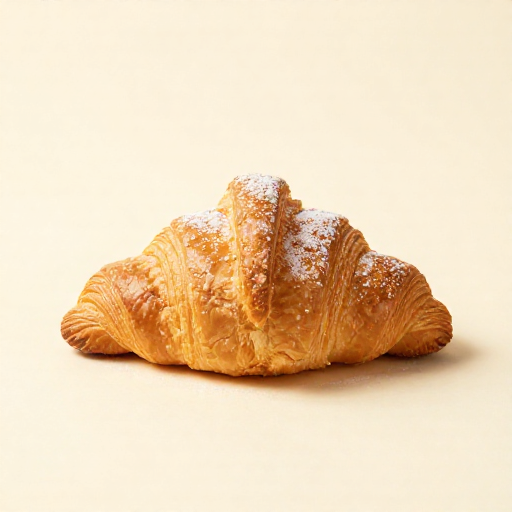
1. Prompt Variation
Explicitly guide the AI with text to combine structural changes with high-level conceptual goals.
Type a simple intention (e.g., "add a fresh mint") and click the
Smart Suggest button. The AI will automatically expand it into a professional, high-fidelity prompt.
Variation
@1Change Strength68
2. The Look Map
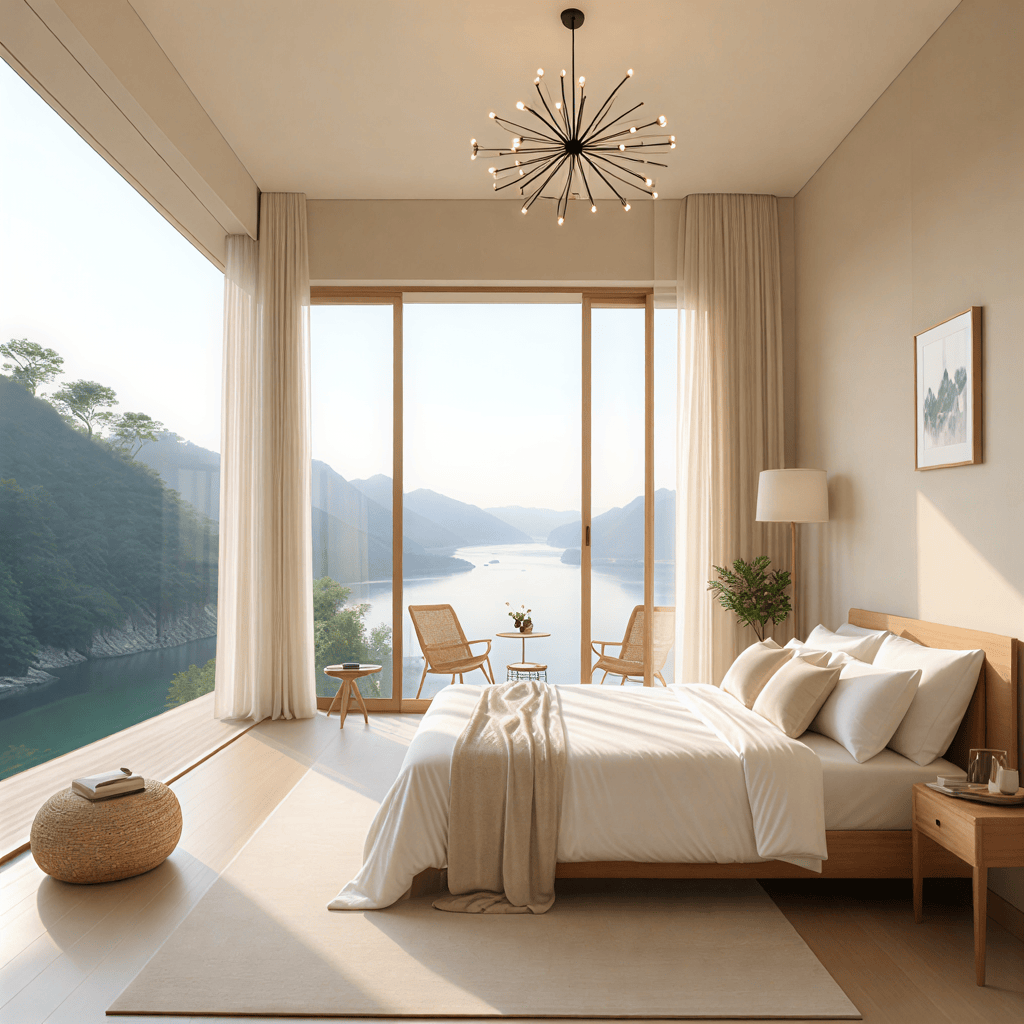
Use the 2D grid to define the aesthetic direction of your variation.
- Artistic vs. Photorealistic: Switch between stylized interpretations and grounded captures.
- Intricate vs. Minimalist: Balance complex textures against clean, simple forms.
Variation
Intricate
Minimalist
Artistic
Photorealistic
Change Strength68
3. Change Strength
The Change Strength slider determines the magnitude of deviation from the original source. It is accessible in both tabs.
- Subtle (0-30): Minor refinements that preserve the core structure.
- Moderate (30-70): Evolvement with significant stylistic shifts.
- Dramatic (70-100): Radical transformations that use the original only as a foundation.